- On the hole page, tap Show the hole map and GPS.
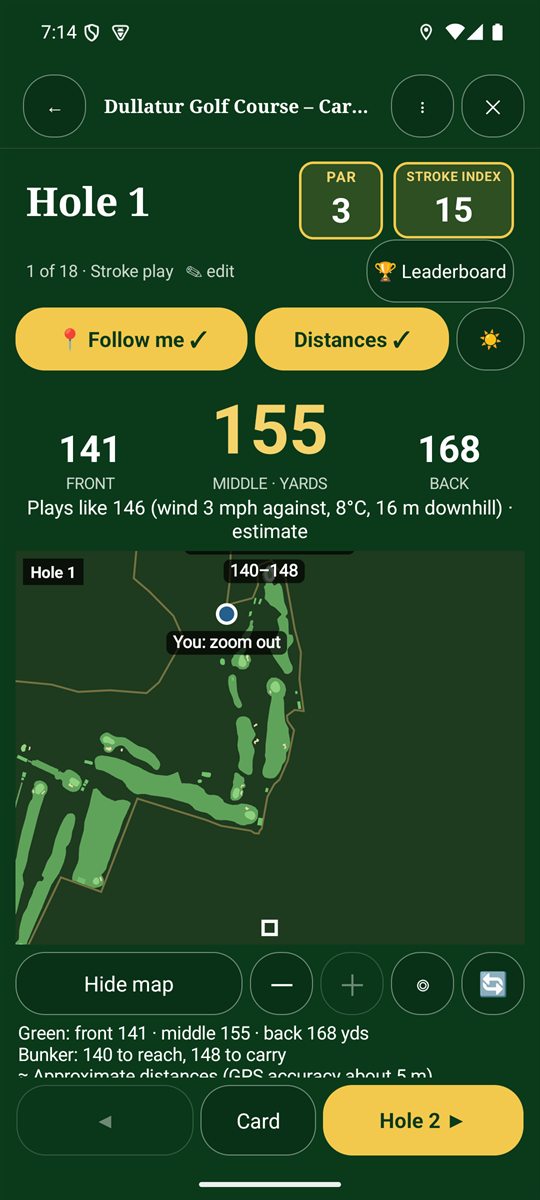
- Tap 📍 Follow me and allow location. A blue dot shows where you are.
- Read the distances across the top: front, middle (large, in gold) and back of the green.
- Underneath, Plays like adjusts the middle distance for wind, temperature and height above or below you. It's an estimate.
- Distance labels on the map show how far it is to reach and to carry each bunker.
Map controls
- Distances ✓: show or hide the distance labels on the map.
- ☀ Sun mode: bright, high-contrast colours, with the screen kept on. Choose black or white in Options.
- − and +: zoom out and in. ◎ recentres on you and the green.
- 🔄: refresh this course's scorecard and map.
- Hide map: go back to the plain scoring page.
When a hole has no layout
Course maps come from OpenStreetMap, where volunteers draw the holes. If a hole isn't mapped yet, the app tells you and asks you to tap the green you're playing to on the map. It remembers your choice for next time.
You can also pin the hole yourself as you play. Standing on the tee, tap Pin the tee here (it then shows Tee pinned ✓). On the green, tap ⛳ I'm on the green: pin it. Pinned positions make distances on that hole more accurate next time.
Moving to the next hole
With Follow me on, the app can notice when you walk onto the next tee and offer to move on. It never changes hole by itself. You can turn this off in Options.
Accuracy: phone GPS is usually accurate to about 5 metres. Distances are approximate, so treat them like a yardage book rather than a laser.
Choose yards or metres in the app's settings.